
CMS editor guide
This guide is for content editors, authors and site operators using SoFinder inside a CMS. You do not need PHP or server knowledge. Your administrator controls which storage areas and actions are available, so your screen may show fewer buttons than the examples.
Start with the workspace
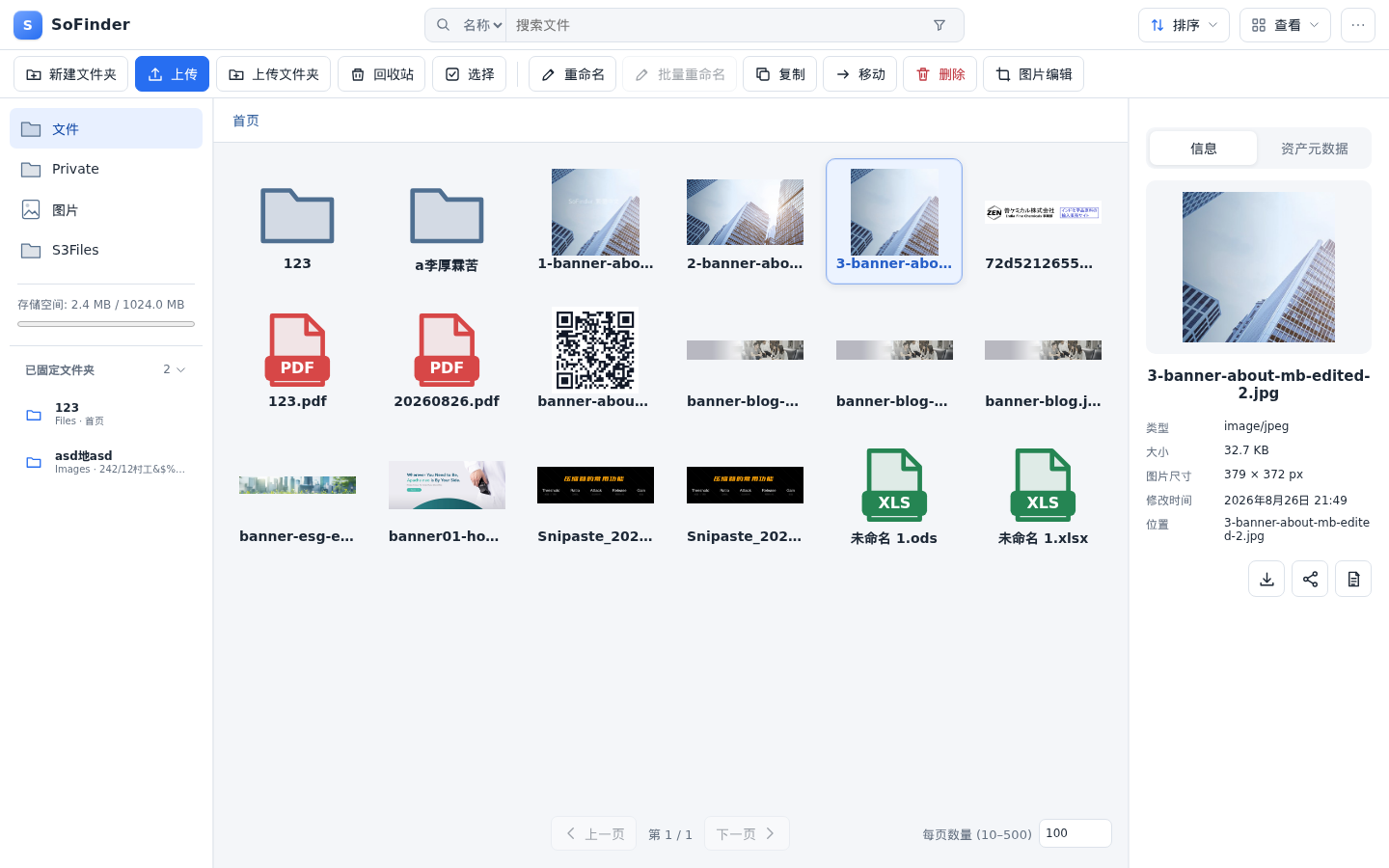
The main areas are:
- Storage areas on the left, such as Files, Private and Images. Choose the area that matches the content you are editing.
- Folders and files in the center. Double-click a folder to open it; select a file once to inspect it.
- Search, Sort and View at the top. Search normally applies to the current folder.
- File details on the right after selecting an item. Check its name, type, size, dimensions and location before using it.
- File actions above the workspace. Only actions allowed for your account are shown.
Before uploading
Use the Images area for website images and the document area selected by your organization for downloads. Do not upload passwords, private customer data or licensed assets unless your organization's policy explicitly permits it.
Upload content
- Open the destination storage area and folder first.
- Select Upload for files or Upload folder for a complete folder structure.
- Choose the local files and keep the page open while the upload queue is active.
- Confirm every item shows Completed. Read the exact message for failed items.
- Select the uploaded file and verify its preview, dimensions and location.
You can also drag files into the main workspace. Dropping directly onto a folder uploads into that folder. If a name already exists, choose:
- Auto rename to keep both files. This is the safest default.
- Overwrite only when you intend to replace the existing file and have permission.
- Skip to leave the existing file unchanged.
Common upload failures are an unsupported file type, a file that is too large, insufficient storage quota, an unsafe or damaged file, or missing permission. Contact your site administrator with the storage area, folder, filename and exact error message.
Organize and find files
- Use New folder for a clear content structure. Follow your organization's naming convention.
- Select one item and use Rename. SoFinder keeps the extension separate to prevent accidental format changes.
- Select items and use Copy or Move, then choose a destination folder.
- Use Favorite for files you open frequently and pin frequently used folders to the sidebar.
- Use name search for a known filename. When enabled, tag search can find content by campaign, topic or owner.
- Change View between visual thumbnails and a compact list; this does not alter files.
Before a batch operation, check the selected-item count. Selection covers only the visible page, not every page in a large folder.
Prepare an image for publishing
Select an image and choose Image edit. If the action is absent, enable the relevant image tools in More actions → Settings, or ask an administrator whether your role and the image format permit editing.
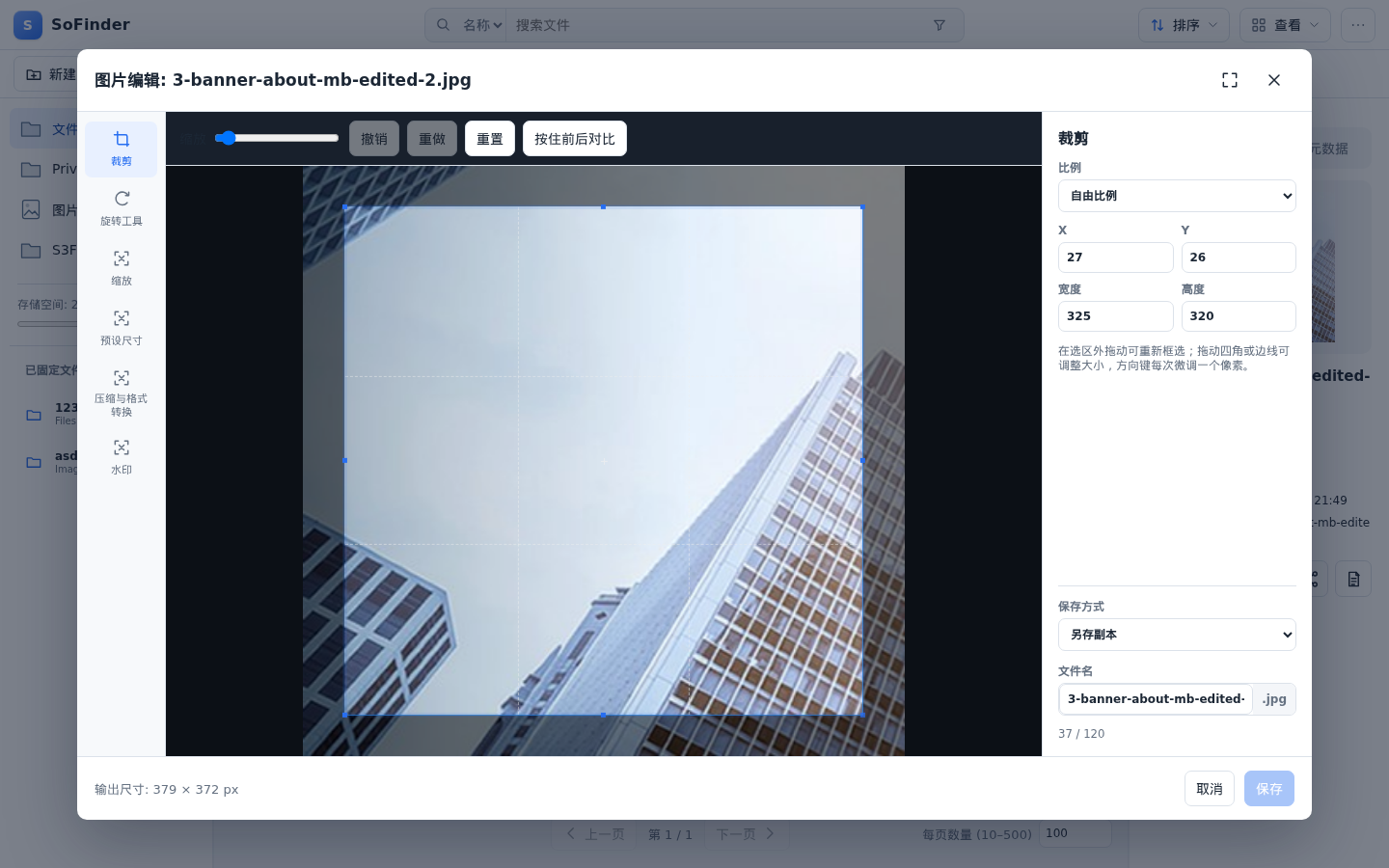
A reliable publishing workflow is:
- Choose a crop ratio required by the CMS component, such as
16:9,4:3or1:1. - Move and resize the crop area so the important subject remains visible.
- Use exact width and height only when the CMS provides a target size.
- Use Optimize when available to reduce delivery size, and preview the result.
- Keep Save as copy unless you are certain every existing use should change.
- Give the copy a meaningful name, save it, then select the new file.
Do not enlarge a small source image merely to meet dimensions; it will look soft. Keep text out of images when practical, and provide meaningful alternative text in the CMS or asset metadata. Mark purely decorative images as decorative instead of inventing alt text.
Insert a file into CMS content
When the CMS opens SoFinder as a picker:
- Navigate to the correct storage area and folder.
- Select one file and review its details or preview.
- For images, confirm the crop, dimensions and filename suit the content block.
- Select Choose or Select. SoFinder returns the file to the CMS.
- Back in the CMS, complete alternative text, caption, link behavior and other content fields before publishing.
A private file URL may require sign-in or expire. Do not use it in a public article, newsletter or external site unless your administrator confirms that the delivery mode is suitable.
Replace, delete and recover safely
Prefer uploading a new version with a new filename when an existing image may already be used by published pages. Overwriting can change every page that references the same URL and may be cached by a browser or CDN.
When deleting:
- Check the filename, folder and selected-item count.
- Read any usage warning. If registered pages use the asset, update those pages first.
- Confirm whether the dialog says the item is recoverable or permanently deleted.
- Use Recycle bin to restore a recoverable local file. If its old name now exists, choose automatic rename unless replacement is intentional.
Quick problem guide
| Problem | What to check |
|---|---|
| A button is missing or disabled | The storage area may be read-only, your role may not allow the action, or picker mode may limit tools. |
| Upload fails | Read the queue message; check file type, size, filename and quota. |
| Image edit is unavailable | The format may not be editable, image tools may be disabled in Settings, or the server lacks a decoder. |
| A file cannot be selected | A folder is selected, the picker expects an image, or the file has no usable delivery URL. |
| A shared link fails for another person | It may require login, have expired, or belong to a private storage area. |
| A deleted file is not in the recycle bin | That storage adapter may delete permanently, or retention may have expired. |
| The interface differs from this guide | Features and labels depend on the CMS, account permissions and administrator configuration. |
For every support request, include the storage area, visible folder, filename, attempted action and exact error text. Never send passwords, private file contents or signed URLs. For advanced controls, continue with the complete file manager guide and image guide.